Uptime Robot offers many ways to get notifications: e-mail, SMS, push messages, web-hooks, 3rd party integrations and more..
And, it delivers a “down message” once a monitor is down and an “up message” once it is back up.
The advanced notification options
For the Pro Plan, it is now possible to:
- get a “down notification” only if the monitor is down for x minutes
- and, optionally, keep getting the “down notifications” every y minutes
Simply, we can now tell “if down for x minutes alert once” or “if down for x minutes, alert every y minutes“.
And, this is a per monitor per alert setting which is great to have different settings for each monitor or alert contact.
What it is good for?
Using this feature, you can:
- ignore small downtimes
- escalate notifications (if down, send notifications to Alex, if down for 30 minutes, send notification to Brian, etc.)
- make sure you don’t miss a down notification by getting them every x minutes
How to use it?
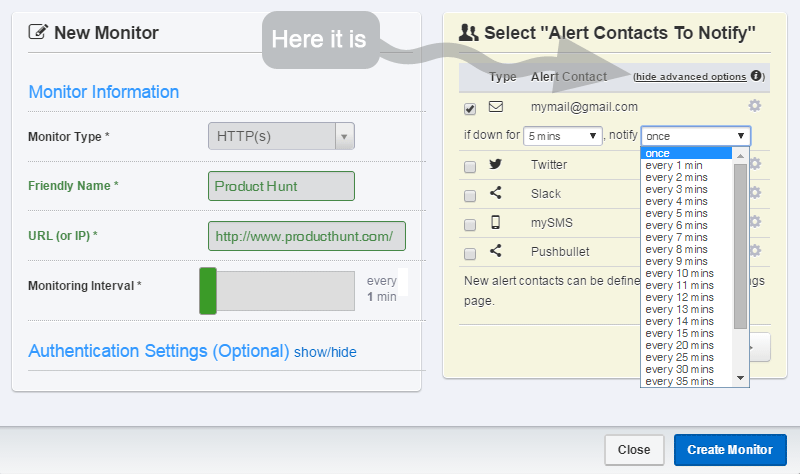
In the “add/edit monitor dialogs”, you’ll see a “show advanced options” option. Once clicked, it’ll display a “settings icon besides each alert contact” and clicking them will be showing the options.
And, the interface will remember whether “the advanced options are shown or hidden for any future add/edit monitor actions” to ease the usage.
Additionally, the feature can be applied to all monitors in bulk using the “Bulk Actions” (that can be found just under the “Add Monitor” button).
Need the Pro Plan?
Besides this advanced notification options, the Pro Plan supports 1-minute monitoring for faster downtime detection and 1 year of stats (and, it is still offered with the introductory pricing).