Updated: May 5th, 2026
Hi everyone!
Microsoft has retired Office 365 Connectors in Microsoft Teams and replaced them with the Workflows app inside Teams. If your old MS Teams integration with UptimeRobot stopped working, here’s how to set it up the new way.
How to update your MS Teams Integration
1. Open Microsoft Teams at https://teams.microsoft.com/ (or use the desktop app).
2. Go to the team and channel where you want UptimeRobot alerts to appear.
3. Hover over the channel name → click the three dots (•••) → click Workflows.

4. In the search bar, type webhook.
5. Select the template “Send webhook alerts to [your-channel]”.
6. Confirm the correct Team and Channel are selected → click Save.
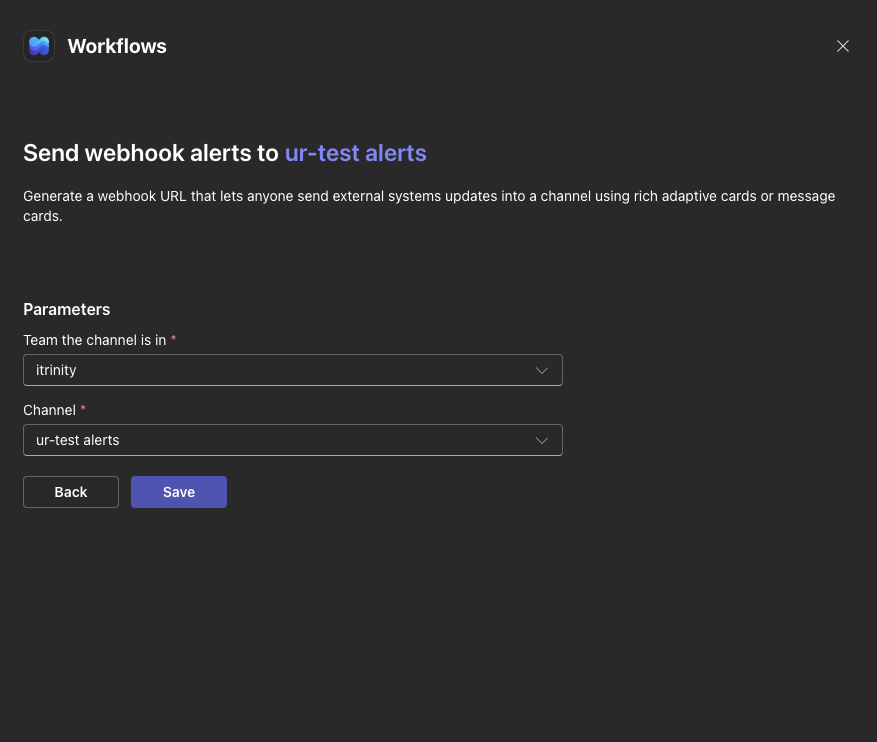
7. Copy the webhook URL that’s displayed and click Done.

Add the webhook to UptimeRobot
1. Log in to UptimeRobot at https://dashboard.uptimerobot.com/.
2. Go to Integrations and click Add next to MS Teams (or search for MS Teams).
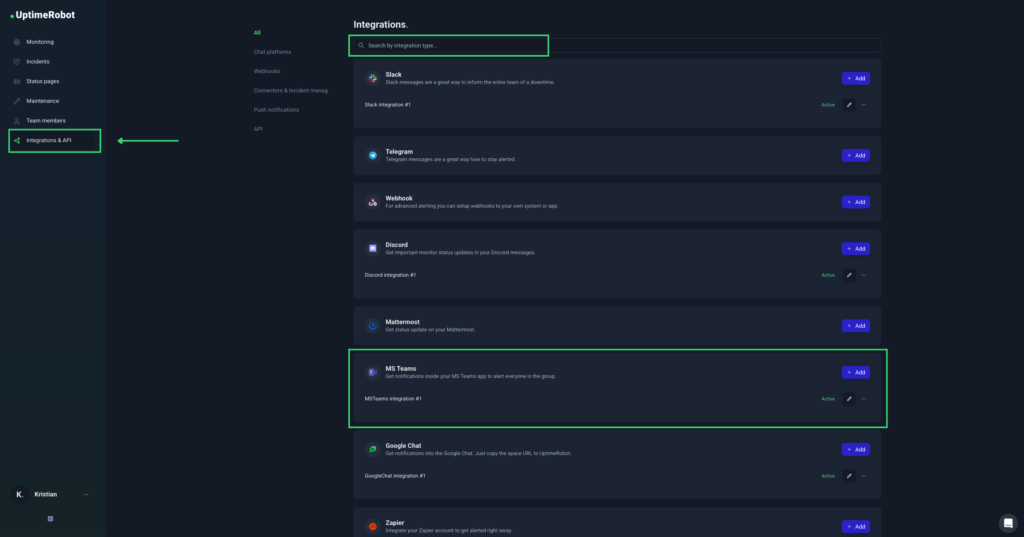
3. Paste the webhook URL you copied, choose the events you want to be notified about, and click Create integration.

4. That’s it! Don’t forget to assign monitors to your new integration.
Now head over to UptimeRobot and log in.
Easy, right? But in case you run into any troubles, please contact the UptimeRobot support team based on the issue.